Workflow Automation
Workflow automation for lead follow-up and routing
Set rules for what happens when a message or lead arrives: who gets it, what the customer hears first, which tag it carries and when someone follows up. Your team spends its time in conversations instead of chasing them.
Coverage
See which channels your workflows cover
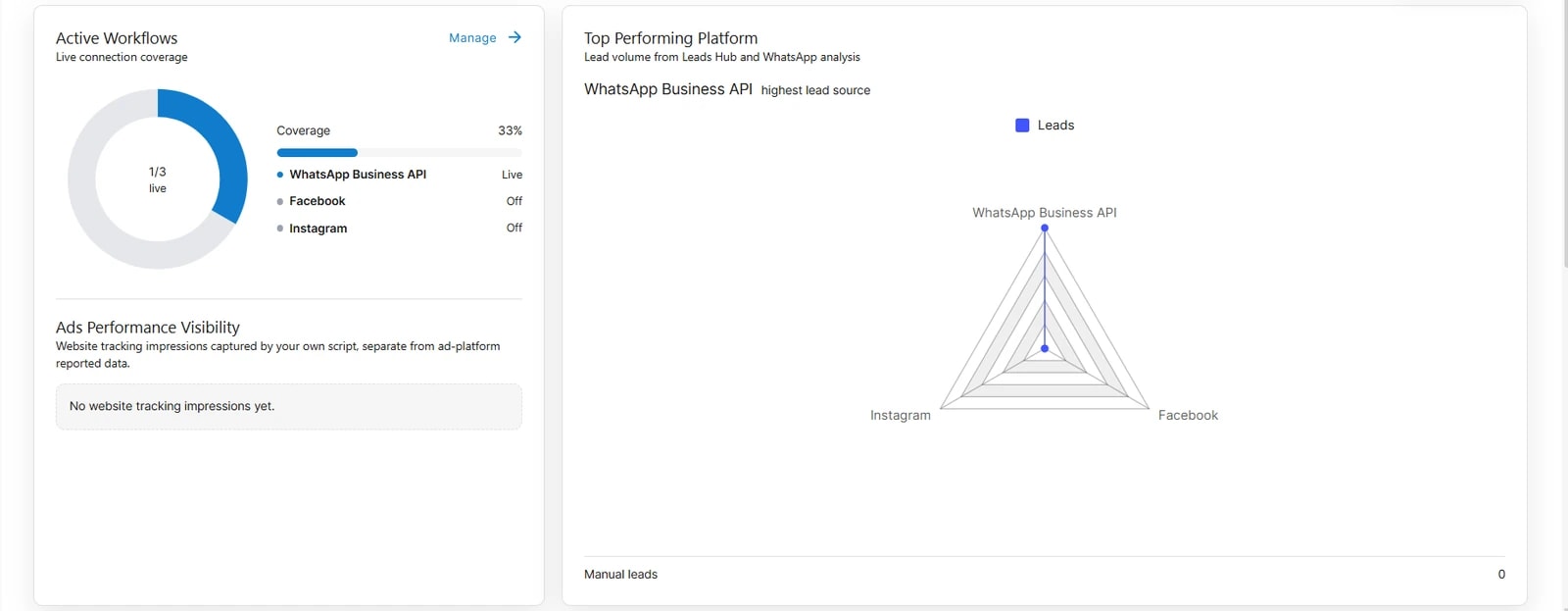
The dashboard shows active workflow coverage for each connected channel, so a channel with no rules running stands out. In this workspace, WhatsApp Business API is live while Facebook and Instagram are still off.
- Live connection coverage for WhatsApp, Facebook and Instagram.
- Top performing platform by lead volume, beside the coverage view, so you can automate the busiest channel first.
Rules teams set up first
Each rule has a trigger, optional conditions and one or more actions. These examples show the shape. The triggers and actions available depend on the channel and your workspace set-up.
Send each enquiry to the team that can answer it
One Instagram account or WhatsApp number often serves several branches or languages. A rule can give the conversation to the right team based on the menu option the customer picked or the branch they chose.
- Arabic and English speakers reach the right agents
- Branch teams get their own enquiries without sorting through everyone else's
- A team lead hears about anything left unanswered
Reply to Lead Ad forms while the prospect is still on their phone
Lead Ads go cold quickly. Send an approved WhatsApp template straight away, give the lead an owner by round robin and put a call on their list for the same day.
- First reply goes out without anyone watching the inbox
- Owners are shared out in turn across the team
- Every new lead has a dated next step
Follow up on quotes without a spreadsheet
When someone tags a lead quote-sent, a rule can wait for a reply. If none comes, it creates a follow-up task for the owner, sends a reminder template and moves the deal on the board.
- Tags start the clock, so nobody keeps a separate list
- The owner gets a task with the customer's history attached
- Reminders use approved templates, so they can go out after 24 hours
Add to workflow
Add a conversation to a workflow by hand
Not every follow-up starts with a trigger. From the conversation, use Add to Workflow to put the customer into a workflow you've already built, such as a quote follow-up or a post-visit feedback request.
Workflows and the Integration Builder do different jobs
Workflows act inside Exenra. The Integration Builder will move data between Exenra and your other software. Here is how to tell them apart.
What should happen inside Exenra?
Workflow automation
Rules that act on conversations and leads in your Exenra workspace.
- Replies, assignment, tags and follow-up tasks
- Runs on the channels you've connected
- Part of the platform today
What should happen in your other software?
Integration Builder In development
Connects a channel event to an outside system such as an ERP, POS or CRM, with field mapping and a test before it goes live.
- Example: a WhatsApp message creates a contact in your ERP
- In development, shown today as concept visuals
- Custom connections are project-scoped in the meantime
Questions about workflows
What can trigger a workflow?
Typical triggers are a new message on a connected channel, a new Lead Ad lead, or a change to a lead such as a tag being added. The exact list depends on the channel, and we'll show you what's available for your set-up in a demo.
Can a workflow message a WhatsApp customer after 24 hours?
Only with an approved template. WhatsApp allows free-form replies within 24 hours of the customer's last message. After that, any message your business starts must use a template Meta has approved.
What is the difference between a workflow and the AI agent?
A workflow follows fixed rules you write: when this happens, do that. The AI agent reads the customer's question and answers from your knowledge sources. Many teams use both, with a workflow deciding who owns the chat and the agent handling routine answers.
Can workflows update our ERP or CRM?
Connecting to outside systems is the job of the Integration Builder, which is in development, and of project-scoped integrations we build against your system's API. See integrations.
How do we know which channels have workflows running?
The Active Workflows view on the dashboard shows live coverage for each connected channel, so a channel with nothing running is easy to spot.
Related pages
- Team ManagementRound robin and routing by team or branch
- CRM & Lead ManagementWhere workflow-created leads and tasks live
- Marketing CampaignsApproved templates your rules can send
- Integration BuilderEvents to outside software, in development
- Sales AutomationFollow-ups that don't depend on memory
- Multi-Branch OperationsOne brand, many locations, clear routing