WhatsApp Business API for teams that sell and support on WhatsApp
Exenra is a Meta Tech Provider on the official WhatsApp Business Platform. Connect one or several numbers through Meta's Cloud API, answer every chat from a shared inbox, switch the AI assistant on per number, and send campaigns with templates Meta has approved.
WhatsApp Business app or WhatsApp Business API
Both come from Meta and both show your business name to customers. The app suits one person on one phone. The API is built for teams, automation and software that connects to it.
| What differs | WhatsApp Business app | WhatsApp Business API with Exenra |
|---|---|---|
| Built for | One person or a small team replying from a phone | Teams that share conversations, automate replies and connect other systems |
| Where you reply | The WhatsApp Business app on a phone, plus linked devices | A shared inbox in the browser, with assignment, notes and lead conversion |
| Numbers | One number per app account | Several numbers in one workspace, each with its own health status |
| Automation | Greeting and away messages, quick replies | An AI assistant per number, workflows and routing rules |
| Messaging customers first | Broadcast lists, delivered to contacts who saved your number | Templates approved by Meta, sent to customers who opted in |
| Reporting | Basic message statistics in the app | Conversations, response rate, response time, delivery and template analytics |
| Connecting other software | Not designed for it | Messages arrive through Meta's webhooks and flow into CRM pipelines and integrations |
Getting connected
What onboarding involves
You complete Meta's onboarding from inside Exenra, signed in as your business. Most of it is Meta confirming who will be sending messages.
A Meta business portfolio
Use the portfolio you already have (formerly Business Manager) or create one during sign-up. It owns your WhatsApp Business account.
A phone number you control
It must be able to receive a verification code by SMS or voice call, and it should not be active on another WhatsApp account.
A display name for review
Meta checks that the name customers will see matches your business and follows its display name guidelines.
Connect and test
Exenra connects the number to Meta's webhooks so incoming messages reach your inbox. Send a test message and check the number's health status.
Meta may also ask you to verify your business, for example before raising how many customers you can message each day.
Numbers and AI
Several numbers in one workspace, each with its own settings
Give sales, support and each branch their own WhatsApp number and run them from one Exenra workspace. A trading business with a Dubai showroom and a Lahore sales team can keep both lines apart and still see every chat in one place. Each number has its own chats, campaigns, templates, analytics, settings and history.
- Health status per number, so a connection or quality problem is noticed early.
- AI assistant on or off per number, for example on for after-hours enquiries and off for key accounts.
- Every number feeds the shared inbox, with assignment, internal notes and lead conversion.
Templates
Templates, categories and Meta approval
A template is a message you write once, with variables such as a name or an order number, that Meta approves before it can be used. You need one to message a customer who has not written to you in the last 24 hours. Templates can carry buttons, such as Track order or Talk to us, and Meta places each one in a category.
- Marketing. Offers, launches, restock alerts and invitations to come back.
- Utility. Updates about something the customer started, such as an order, booking or payment.
- Authentication. One-time passcodes for logging in or verifying an account.
Meta can reject a template or change its category during review, so plan launch messages ahead and keep a fallback.
The 24-hour customer service window
Meta's rules depend on when the customer last wrote to you. Every message from a customer opens a 24-hour window, and the window restarts each time they write again.
Window open for 24 hours
Reply freely with text, images and documents. A teammate, the AI assistant or a workflow can answer.
Window closed
Only approved templates can be sent. A free-form reply has to wait until the customer writes again.
A new window opens
The conversation continues normally for another 24 hours, counted from their latest message.
Simplified explanation of Meta's customer service window. Approved templates can also be sent while the window is open, for example an order confirmation.
Campaigns and QR lead channels
Campaigns that start conversations, and QR codes that bring them in
Campaigns send an approved template to customers who opted in to hear from you, such as recent buyers or people who asked about a product. Replies come back to the shared inbox and are routed like any other chat.
- Audiences built from tags and lead data, limited to people who opted in.
- Scheduling for the hour your customers actually read messages.
- QR lead channels put a WhatsApp entry point on packaging, shop windows, flyers or event stands, so those enquiries arrive as leads you can trace to their source.
WhatsApp analytics for each number
See how many conversations came in, how many are still open, how quickly your team replies, and whether messages were delivered and read.
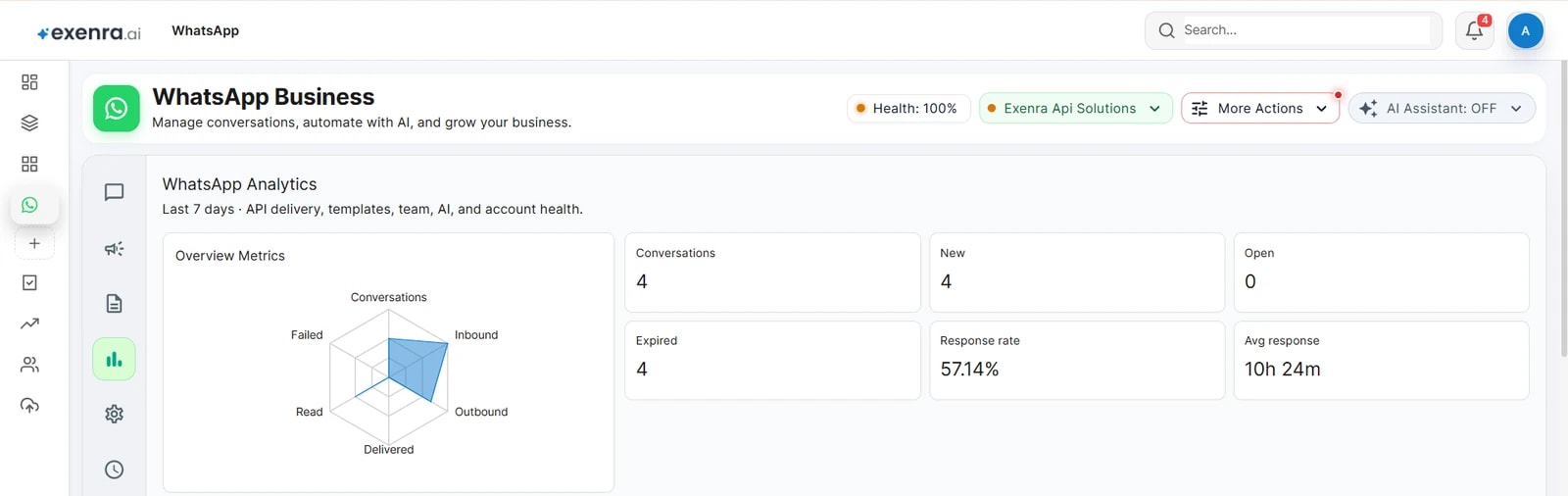
- Conversations, new, open and expired
- Response rate and average response time
- Inbound, outbound, delivered, read and failed messages
- Delivery health for the number
- Template analytics for campaigns and notifications
- Health status and AI assistant state in the header
Pricing
How WhatsApp pricing works alongside Exenra
Meta sets the charges for WhatsApp messaging under its own published pricing. What you pay depends on the message category and the recipient's country, and Meta revises its pricing from time to time. Meta's charges are separate from your Exenra plan.
Teams in Pakistan and the UAE often message customers in several countries. Because Meta prices by the customer's country, check Meta's WhatsApp pricing for each market you send to.
Meta's messaging charges
Set by Meta under its published pricing, by message category and country.
AI usage
AI replies run on tokens, which you can top up from the workspace when you need more.
WhatsApp Business API questions
What teams ask before moving their WhatsApp to the API.
Is Exenra an official WhatsApp Business API provider?
Exenra is a Meta Tech Provider on the official WhatsApp Business Platform. Your number runs on Meta's Cloud API, and the WhatsApp Business account sits in your own Meta business portfolio.
Can we keep our current WhatsApp number?
Usually, yes. Depending on the options Meta offers for your number, it may need to be removed from the WhatsApp or WhatsApp Business app before it is registered on the API, and app chat history may not carry over. We check your number's situation with you before anything is switched.
How many numbers can one workspace have?
A workspace can hold several numbers, and you switch between them with the number selector. If you plan to run many, for example one per branch, tell us during onboarding so we set the workspace up around it.
What happens if a customer has not written in more than 24 hours?
You can still reach them with an approved template. Once they reply, a new 24-hour window opens and your team can answer freely again.
How long does template approval take?
Timing is set by Meta's review, and Meta can reject a template or move it to a different category. Write templates that clearly match their category, and submit important ones well before you need them.
Can the AI assistant reply on WhatsApp?
Yes, if you switch it on for that number. It answers from the documents and instructions you give it and hands the conversation to a person when it should. You can switch it off per number at any time.
Who bills the WhatsApp message charges?
Meta sets the charges for WhatsApp messaging under its own published pricing, which varies by message category and country. Your Exenra plan is separate, and we'll walk through how both apply to your volumes before you sign.